What’s not working for you in Windows 7?

I’ve got a short list of bugs in my Windows 7 install and while I know some of these issues are “standard” on my hardware, I have not seen anyone else talk about a few so figured it was worth a share …

  • Sound & Brightness controls don’t always work when resuming from standby.  This is frustrating but at least the NC10 boots back quickly …
  • Bluetooth seems like a mess.
  • I’ve found if I try to open My Bluetooth Places, I can actually cause the Explorer to crash.  It usually freezes up and stalls, but the full Explorer restart seems pretty major.
  • I can pair devices, but they don’t always work.  My mouse needs to be repaired frequently in order to continue working.  I’m using the Apple Mighty Mouse …
  • Dial-Up Networking is a non-starter.  I have my N85 Paired, but find I can only get a data connection over USB.  This is far from awful, but certainly an inconvenience.  The upside is that the N85 charges like this …
  • Desktop Gadgets are flaky.  I only use the Weather but find that sometimes they like to stay on top of active applications or simply disappear.  I have two of them running and right now one (the first one if that makes any difference) seems to have gone away.  This is usually resolved with a reboot.
  • Full Screen mode in Firefox is hit or miss.  Sometimes it works and sometimes it fights with the taskbar to see which one gets to stay on top.
  • Time – I keep finding the clock is off by quite a few hours.  This morning the time was reading tonight and the time server preference seems to fail on most of the server options.  I usually try manually when this happens and eventually it updates.  I’ll have to try setting it manually and leaving it.
  • Think that’s about it – at least in what I’ve noticed and tried.

    Nokia Chat becomes Contacts on Ovi

    Nokia Beta Labs has updated / rebranded the Nokia Chat client into Contacts on Ovi and released versions for all devices except the S60 5th Edition platform which is really only the 5800 for today.  Nokia Chat and now Contacts on Ovi really is a great way to do IM on the go.  Aside from the simple IM handling you can also broadcast your location, send locations to friends and even send a voice message (gone in Contacts on Ovi).  In the latest version, you can also share your current music track much like on a desktop IM client.

    What’s new, apart from the brand? I’ll have to first say that the
    clients are in a better shape, we’ve resolved lots of bugs that have
    been bothering you and us too. Secondly, we’re supporting lots of more
    devices now. The new platform we have a client for is S60 3rd Edition
    Feature Pack 2. It’s about time, right? We wanted it to look better,
    and have more features in it. With the new client available for the
    latest models you’ll be able to broadcast the music you listen as a
    part of your personal message (for those of you that are in to XMPP,
    I’ll just give out that it’s using the PEP extension, which you’ll find
    supported in some PC clients too).  [Nokia Beta Labs]

    What we can learn from Android – looking at YOU Nokia!

    I’ve been playing with the Android G1 phone for about 24 hours and while I’ll have some thoughts to share on it in general soon, there’s one striking thing I thought was worth mentioning right away. The Android G1 has without a doubt the most straight forward and simple initial user experience of any device I’ve used.

    When the G1 powers up you are prompted to either create or login to your Google Account. Signing in with my creds then began the sync process which brought my Contacts and Calendar down, and also configured my email and IM accounts for use. WOW! One account with so many benefits. I’ve been told it should have also signed me in through the web services so the mobile google services I use would also be connected though that did not happen for me. Perhaps due to my trying to use things before the sync had completed…

    Apple still has a very desktop centric view of the iPhone and the reliance of iTunes is a core strength. The sync works very well though configuration requires a bit of effort /tweaking through iTunes. This bit of effort is actually a lot more than the G1 requires as you’ve been long since configured your Google stuff … assuming of course you use Google services and that’s really who the device is targeted.

    On the Nokia side, you don’t actually benefit from any PC side configuration though some things can sync through the PC or Ovi Suites. No accounts are configured unless you choose to sync to an exchange account through PC Suite. Without getting into the complexities there, I would not advise fully syncing to your exchange server in PC Suite. I only sync the Notes there as that apparently was not important enough to be considered a part of Mail For Exchange. I digress …

    Nokia handsets are largely PC independent, meaning you can and in most cases need to do it all on the handset. As Nokia looks to rely on services for growth and revenue, enhancing the consumer experience needs to become a core strength. Take a look at what’s currently connected to my Nokia Account:
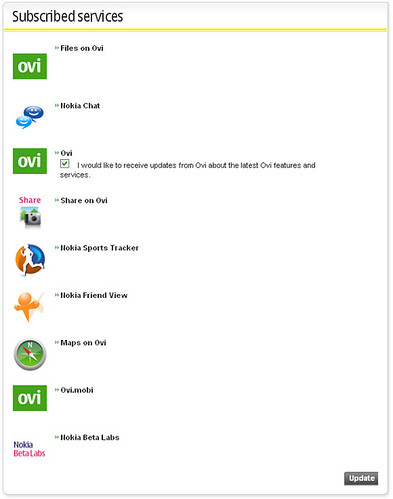
    Nokia Account Configuration

    There are 9 things listed including applications, web services, and communication preferences. Instead of enabling the experience however, I have to actually log in to each bit separately when I use them. My browser does not even necessarily remember me even though it’s configured to save login details. This sucks. I know the Nokia Account system is new, but there’s such a massive opportunity for change here. Looking at the experience on the G1, there is so much to borrow from. I hope we see changes like this in the N97 and other devices this year, but the S60 system does not feel as smooth as some of the newer systems like Android.

    Why can’t I just upload to Ovi out of the box without having to change anything after logging in on first power up? My email could be configured automatically as well if Nokia Email connected to the Nokia Account system and I can’t see why it won’t either. IM, Maps, Ovi.mobi etc etc. All this stuff could just work because you’ve already logged in!

    I saw no mention of how things work on the Palm Pre, but given their desire to link external accounts to the core applications it would make a lot of sense to enable people to quickly authorize on the web and pass that through something like a Palm account.

    Google has really pushed things forward with their account configuration and it’s something everyone developing mobile devices and services can learn from. Using anything else after having this experience will just highlight the old way of thinking — when consumers were made to work for it instead of encouraged by having pre-enabled services. Just consider how the iPhone’s unlimited data package contributed to usage and think about what pre-connected services would do to the usage figures. Retention of course will still be up to the service provider to put forth something of considerable value.

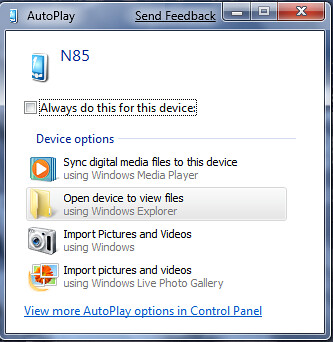
    More N85 and Device Stage

    I got a question on how I had tried the N85 connection to my Windows 7 system and did some more exploration in order to better understand how it works. My usual habit is to select PC Suite when prompted on my phones as they connect to my machines. I’ve done that but also gone through the other modes of the phone to compare the differences Windows 7 presents.

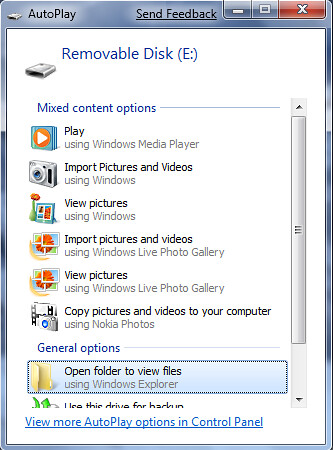
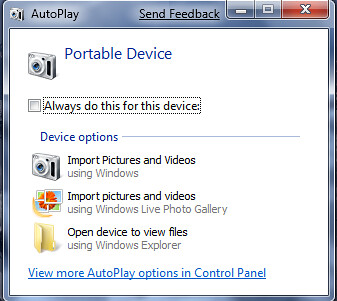
    If you are not familiar with the Nokia set up, when you connect to a computer, you are prompted to choose a mode which gives your computer a better sense about what you might want to do and then the appropriate apps know how to communicate. The options are PC Suite, Mass Transfer Mode, Image Transfer Mode and Media Transfer Mode. What follows are the on-screen prompts from Windows for each mode.

    PC Suite:

    2009-01-22_1923 - N85 in PC Suite in Windows 7

    Mass Transfer Mode:

    2009-01-22_1922 - N85 Mass Storage in Win 7

    Image Transfer Mode:

    2009-01-22_1925 - N85 in Image Transfer in Windows 7

    Media Transfer Mode:

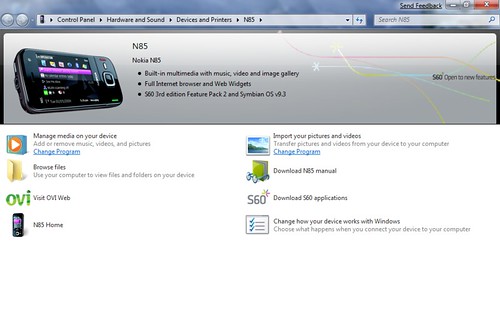
    2009-01-22_1927 N85 Media Transfer in Windows 7 - zoomed

    The Device Stage clearly kicks in when you connect in Media Transfer mode which I supposed I should have realized last time I tried this since as noted earlier Device Stage really picks up where the MTP (Media Transfer Protocol) left off in XP and Vista.

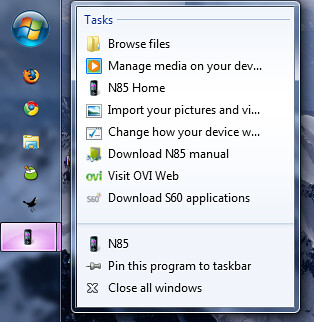
    The other bonus about Media Transfer mode is that the devices stay pinned while connected in the Task Bar which is a very powerful option given the options within the right-click menu.

    Right clicked on the N85:

    2009-01-22_1949 - N85 right click in taskbar in windows 7

    To give you an even richer sense about how this works, I’ve captured a screencast though admittedly it’s a bit jerky. The actual experience was smooth … unlike this video.

    Cisco Visual Networking Index, Runs on Windows, Sold on a Mac

    As someone who works in marketing, primarily for tech companies I take pride in the accuracy of how things are represented. When I’m involved in a technical demo, it works like it is supposed to or (if not developed yet) is animated in a way to simulate reality. What I can’t do though is show something functioning in a fictional environment which is why I get so frustrated when I see things like The Cisco Visual Networking Index

    Cisco Visual Networking Index Free Application

    Sure it’s possible that a Windows user has a DVI connection hooked up to their Apple Cinema Display, but the chances of that being a reality are pretty damn slim. This seems like a classic case of the art director just doing what they felt looked best and in this case it’s lame. My eye saw the monitor and the application before I realized (a moment later) that I was looking at a Vista desktop.

    hat tipNextNY

    No serial for Apple’s iWork seems like a marketing move

    I was reading about the lack of a serial key for iWork via Obsessable this morning and it occurred to me that while that is actually a pretty standard Mac thing, it could also be a way to encourage distribution and trial.  Sure you lose a bit, but more Mac users using iWork (which looks sweet) is a good thing and Apple can certainly afford the full “trial.”

    Do you need or even want an instant-on netbook?

    There’s been a good deal of chatter and even video posted lately about Hyperspace, Phoenix Technologies instant-on OS for netbooks. Sony seems to have felt the pressure as well launching the Sony Vaio P with their XMB start-up option.

    In both cases, you get a limited OS but access to things you are most likely to want to check quickly – email, web, voip music etc … It sounds good though as I’ve thought about my own usage, I don’t actually turn the machine off. My laptops and netbook are basically always on. I put things in standby when they go in my bag for my commute and even when I’m heading to the airport. I’ve never felt that the limited loss of battery life was substantial enough to be concerned with or something that warranted turning the computer off to conserve.

    According to liliputing, the boot time savings is about 30 seconds on a Lenovo S10 they tested recently. AllThingsD recently gave this a test as well:

    “It’s misleading to say that the Phoenix HyperSpace products offer a faster way to start up your computer, because they don’t actually open Windows, which is your computer’s heart and soul. Instead, they offer a primitive, bare-bones user interface that relies on Web-based applications. For example, you can send and receive email, but only by using a Web-based email program like Gmail or Hotmail. Documents must be created using a program like Google Docs, and when you watch videos, you must use a player like YouTube rather than something like Windows Media Player or QuickTime. Photos can be viewed either via a photo Web site like Flickr or in the HyperSpace browser. Nothing like Word or PowerPoint is available in this slimmed-down environment.”[AllThingsD]

    If something like an email needs immediate (of course a very relative term) attention I’ve got my phone. Otherwise I think waiting the few extra moments will give me to tools to deal with a situation more effectively.

    What happened to Windows Mobile 7?

    At last year’s Mobile World Congress there was a good deal of chatter regarding Windows Mobile 7 – particularly around the Sony Ericsson Xperia X1. Almost a year later, the X1 has shipped (with Windows Mobile 6) and now the talk is around Windows Mobile 6.5 and it’s looking set for devices scheduled to ship in Q4.

    I’m not a windows mobile expert and I don’t even play one here so I can’t say whether this is semantics (6.5=7) or some backpedaling … What am I missing here?

    Mid Moves

    Mid Moves logo

    Mid Moves is a new site focused on highlighting the power and capabilities of Mobile Internet Devices and the full internet experiences they offer. There are four writers and each will be taking at least two of the latest MID’s with them for a real tour over the next 8 days. It’s a mega-mobile extravaganza!

    There’s some great unboxing content as well as very real world experience being shared to understand how these pocketable devices perform. If you are interested in the category, it’s a must read.

    TechCrunch Crunchpad looks great but …

    TechCrunch has taken a considerable next step in the development of their web tablet concept revealed earlier this summer. As you can see in this video it’s actually quite functional, quick and looks pretty nice.

    Assuming they develop this device further, and that’s a big if at this point, it may end up as a ‘tweener which is not a good thing for CE devices. The netbook market and this tablet have massive overlap both in function and price. For the $299 price you can get a very capable netbook that offers a considerable amount of capablity through a real keyboard. The screen resolution on the CrunchPad (as it’s being called) is higher than any netbook 1024×768 (pages fit without scrolling) and it’s also 12″ which makes it larger too. Weight seems comparable in it’s current proto state to the 10″ EeePC.

    What the CrunchPad seeks to do it apparently does it quite well. I thought the performance in page loading and video playbook looks awesome! It tends to takes a higher end netbook to do the same stuff at that speed… Coming back to the keyboard though I think being able to tap out email and IM is really important for people – let alone posting to blogs, Facebook and other social sites. On screen tapping is not going to be very fun …

    Nokia N85 on the Windows 7 Device Stage

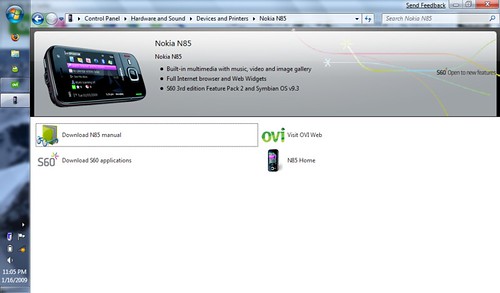
    As a follow-up to my previous post on the Windows 7 Device Stage, I spent a bit of time today exploring further and discovered that the Nokia N85 is in fact supported by the Windows 7 Device Stage.

    2009-01-16_2305_-_N85_on_Device_Stage

    In order to see the Device Stage today you need to navigate to the Control Panel > Hardware and Sound > Devices and Printers> and then click on the Nokia N85.   The options are focused on support with links to the manual, additional S60 applications, product info on Nokia.com as well as a link to Ovi, Nokia Services.

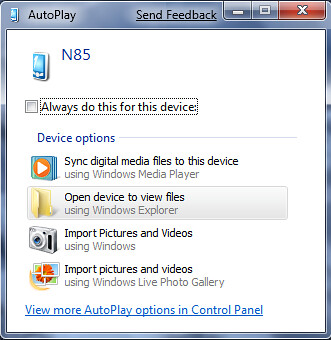
    When you connect the N85 over USB you get the standard AutoPlay option.  I’m not sure if there’s a way around that, though for now given the limited As you can see from the offering inside the Device Stage for this device, I’m not really missing anything.  In fact looking at the AutoPlay options there’s quite a bit more function there. While the Device Stage seems to be centered around support for the N85, Autoplay enables some real actions you might want to take.

    2009-01-16_2313_N85_AutoPlay

    Windows 7 Opens New Ways of Interacting with Devices

    A friendly tipster shared a particularly cool feature in Windows 7, the Device Stage …

    “Windows 7 introduces a new way to interact with your phone, camera, printer, or portable media player from the Windows desktop. Device Stage is new visual interface that makes it easy to find the things you want to do with your devices on your Windows 7 PC. You could think of Device Stage as a multi-function version of Autoplay where it displays all the applications, services, and information related to your device. Device Stage not only works for devices connected to a Windows 7 PC via USB, but also Bluetooth and Wi-Fi as well. In many cases, software installation isn’t required for Device Stage – with any additional drivers that might be needed automatically retrieved from Windows Update. [Windows Experience Blog]

    As a Mac user, I’ve always been either puzzled or frustrated by the amount of driver installation required by Windows. Windows 7 seeks to change that to make it easier but also adds a new level of customization for either the manufacturers or even a wireless carrier.

    The example shown on the Windows Experience Blog is for the Nikon D90 and as you can see it really is an enhanced way to handle the old Autoplay function.
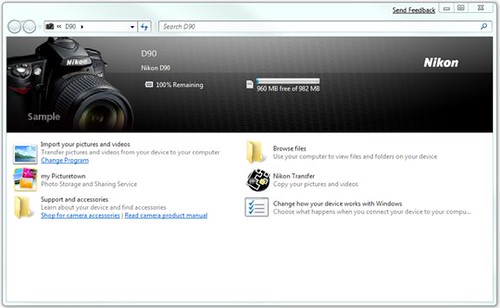
    D90 on the Windows 7 Device Stage

    In this case it’s pretty straightforward, but Nikon is offering access to Picturetown (their online picture service and Nikon Transfer in addition to standard Windows functions for importing or browsing. They’ve also included links to the support site and to the device’s manual.

    What I really like about this though is the opportunity provided to tailor what you are shown based on what you have… or even who it’s from. This next view is for the Nokia 5800 Express Music.

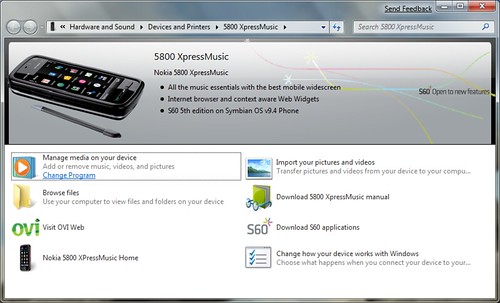
    5800_2

    Here Nokia promotes both Ovi and S60, and provides an easy link to the manual. The view is an S60 branded view though could very easily be from a carrier with links to their services or support content.

    I’ve already seen how well Windows 7 handles new hardware installation by adding a printer, changing my wireless card and connecting a few phones. In each case, Windows 7 was able to easily connect and inform me of the various drivers (if more than one) it was simply taking care of … it’s your call whether you want to see the details or not. I’ve yet to see the Device Stage in action even though the N85 which I’ve connected over both bluetooth and usb is allegedly a supported device. I”ll chalk it up to beta for now …

    At WinHEC in November Microsoft shared how the Device Stage will evolve to enable common tasks to happen within the OS rather than requiring proprietary applications from each company. As you can see in the screenshots, the Device Stage can bridge both standard “in house” functions with those the manufacturer would like to handle themselves. Apparently we’ll be able to be notified and perform advanced tasks like firmware updates in addition to simply syncing or browsing which is the main purpose at the moment.

    I’m very pleased with what I’ve seen so far in Windows 7. When I added an Epson Artisan 800 printer (supported by Device Stage), it was seen on the network and Windows just did what it needed to activate the device within a few moments. On my Mac I needed to actually find, download and install software in order to get it working. Quite the change for Windows to offer the simpler process!

    The Samsung NC10 Hackintosh

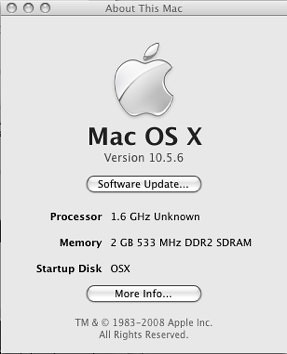
    About This Mac

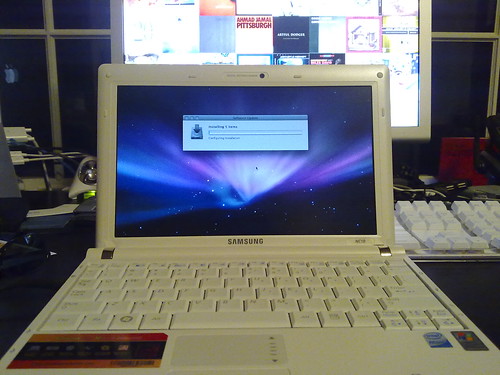
    I’m happily writing this on my Samsung NC10 in MarsEdit in version 10.5.6 of OSX. Courtesy of an awesome forum and guide, I was able to install OSX on a partition and now have this little trooper of a laptop triple booting across WIndows 7, XP and OSX. I’ve been going back and forth between Windows 7 and OSX and think I’ll get rid of XP at some point down the line when Windows 7 is ready for release.

    At first I tried my own way with the OSX project, but discovered after failing (twice) that perhaps I should read the guide through and once I did it was actually very straight forward and relatively simple to do it. The experience of failure certainly helped as I know a lot more about the process, but in general if you are comfortable partitioning a disk and installing an operating system it’s really not so bad.

    If you are considering this project, there are a few kinks that I still need to sort out and these are known issues currently being worked on by the community:

    • My screen brightness tends to be lower than I’d like when booting over battery power.
    • Sound through the headphone jack does not work.
    • Ethernet is not supported as the Marvel controller has no OSX driver.
    • In order to get wireless running you need to swap the wireless card, which I’ve done.
    • The trackpad is a bit less controlled than I’d like though I’ve been using a mouse with the system quite a bit anyway.

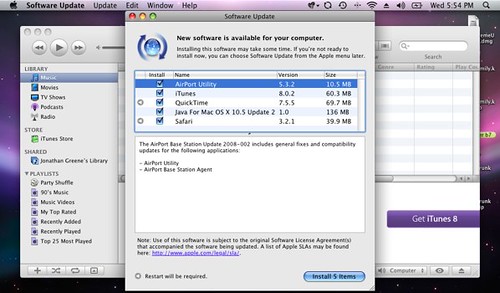
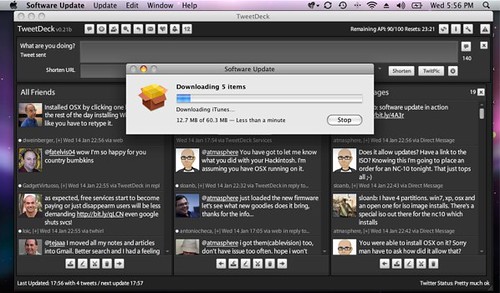
    The amazing upside here is that OSX easily sees the Windows 7 partition and vice a versa. I’m able to use dial up networking for remote connections. Software updates appear to work just fine as illustrated in the following:

    NC10 Hackintosh Software Update

    Updating OSX Software

    01/14/2009 - NC10 running Software Update

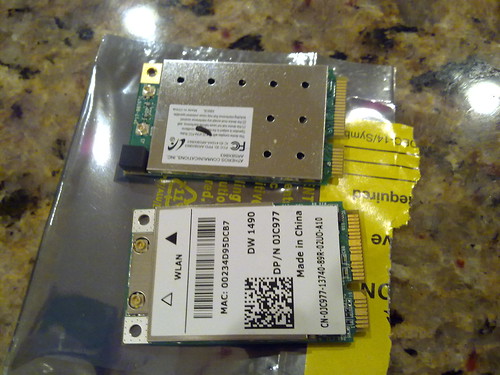
    As I had previous discussed the wireless slot on the NC10 is pretty small given the size of the system and you need to have the right card to swap in. From everything I’ve read, the Dell series of wireless cards seem to be the most compatible across Windows and Mac OS. I chose the Dell 1490 which offers 802.11 a/b/g. While I’ve got an N capable router I have too many things that run on G and it did not seem worthwhile at this stage to pay more than twice as much just to say I had it.

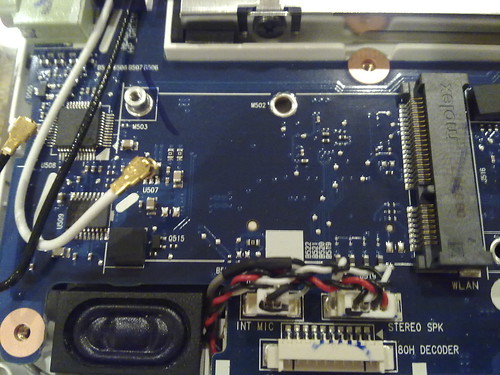
    Back inside we go … I removed the 15 screws on the underside and gently pried the cover apart. Here’s a quick shot of the wireless slot empty:

    Samsung NC10 Wireless Card Slot

    As you can see the stock card and the Dell are exactly the same side … unlike my attempt to get the Airport Extreme card in there.

    01/14/2009 - Samsung NC10 Wireless Options

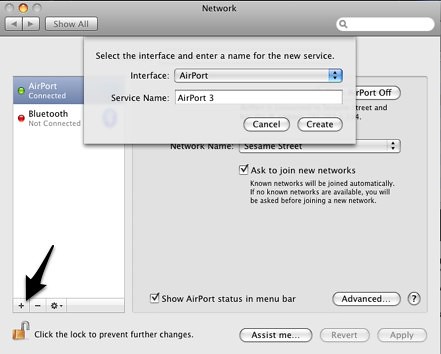
    Once the card was installed I noticed as expected that Airport was not enabled yet. This is because the network port is tied to the previous hardware. Adding the new port is simple. Open the Network Control Panel and select the + in the lower right as seen here:

    Adding a new network interface

    You can name it anything you like and also remove the prior one which is what I did so the new one could actually be called Airport. As soon as I added this new interface it found my home network and I added a preferred network for my office and that connected instantly today when I got to work.

    After that it’s up to you what you want to do … I’ve installed my core apps and synced in my personal data. While the NC10 is not of the same caliber hardware as a Macbook, the cost and bang for the buck here is substantial. The NC10 is showing around 6 hours of battery life which is far better than any MacBookPro performance I’ve seen yet actually a bit less than my experience in XP. I think Windows 7 and OSX are running a pretty close race in the battery life department here and to be honest while more is better with regard to battery life, I’m very pleased with 6 hours.

    Gotta love the Mac!

    OSX DUN on the Samsung NC10 Netbook

    It’s been a while since I’ve had the pleasure of traveling with a Mac laptop and even though my current setup is a tad unique, the same rules apply. The Samsung NC10 netbook is a killer travel machine … light weight, strong battery life, great keyboard etc. It also happens to run OSX like a champ and I’m really very happy with my sub 3lb mac hackintosh. A few kinks to work out still (brightness controls and sound through the headphone jack) but generally speaking this a great way to go – though far from a simple out of the box experience.

    With a PC running windows it’s easy to get a bluetooth to phone data connection using either PC Suite or Ovi Suite and your choice of Nokia handsets. On the mac side, you need some modem scripts and and a little patience. I hope this brief guide helps. I’ve written about DUN connections previously but thought this would be a good time for a new post as the conditions have changed. OSX 10.5 has moved things around in the network panel though it’s not too hard to track down what to do. For this example I’m using a Nokia N85 and ATT.

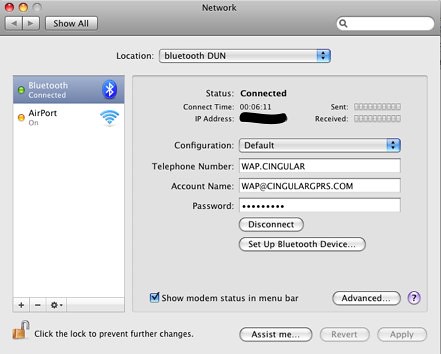
    The first step is to define a PPP connection and you do that right on the first panel once you’ve selected Bluetooth. I’ve set the following options:

    Telephone Number: WAP.CINGULAR
    Account Name: WAP@CINGULARGPRS.COM
    Password: CINGULAR1

    Network Control Panel - DUN

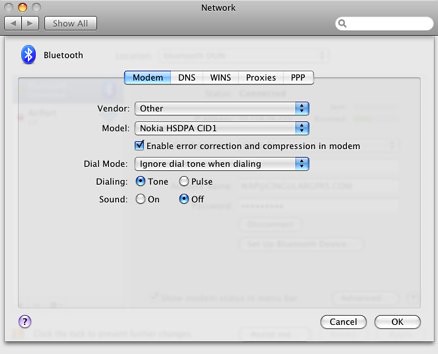
    Ross Barkman’s excellent modem scripts are still THE way to go for anyone looking to use a phone as a modem on their mac. I downloaded the HSDPA scripts and dragged them over to /LIbrary/Modem Scripts. Once there they become available within the Network Control Panel though you need to select other as your brand of phone. I chose the first script which is the Nokia HSDPA CID1 version. Enable error correction and compression in modem is active and I’m ignoring dial tone. I turned sound off too though because you are not actually dialing I don’t think that actually matters.

    Network Control Panel Advanced - Modem

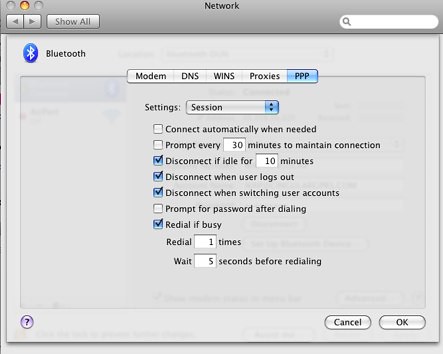
    Last step is to check the far right tab under advanced for PPP. I did not change anything in mine, though you can certainly check the box for Connect automatically as needed if you find you’ll be doing this for an extended time. That will make sure there’s an open network connection anytime something makes a request so be sure you are comfortable with your data plan.

    Network Control Panel Advanced - PPP

    Facebook Social Link Sharing

    Facebook has long offered the ability to share links on your profile, wall or directly with friends though this feature seems to have taken a very nice social step forward.  I just noticed that you can now browse the off-site links while staying within Facebook as seen here:

    facebook social link share


    As you can hopefully see there’s a Facebook frame still holding the page in place which lets me continue to interact with my friend who has offered the content to begin with.  This is a terrific idea and it’s seems very well implemented as well.

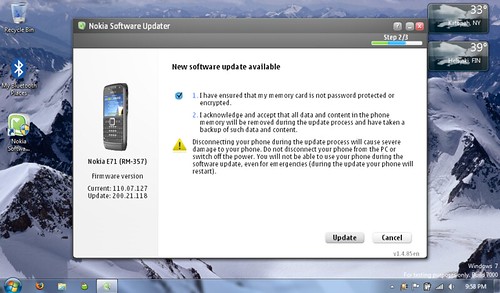
    E71 Firmware updated

    2009-01-13_2159 - Updating the E71

    Last night before bed, I saw the news and updated my E71 to firmware v200.21.118.  If I’m not mistaken, this is by far the quickest we’ve seen a NAM update following the EMEA release.  Excellent!

    I’ve been restoring my applications today and so far so good.  I love the two new black and red themes … and see Internet Radio is now baked in along with MyNokia though I’ve yet to see the sign-up prompt.

    Firmware updates on the E71 erase everything, so please do a backup if you want to try and retain your existing info.  I tend to just move forward rather than restore from backup, but that’s me …

    N79 Active – Heart Monitoring Sport Fitness Combo

    The rumored Polar Bluetooth Wearlink revealed itself today as part of a new Nokia bundle combining the new N79 Active with an armband for sports use.  Sportstracker is the key application keeping score and if desired even geo-tagging your media as you go.  I love this idea and look forward to checking it out when it’s released.

    Update – Press Release is here.  Looks like it will be 375 Euros …

    Battery life is the key to mobility

    There are of course many factors when it comes to mobility, but battery life tends to be the Achilles heel for most devices.  Today for the second time I left the NC10 unplugged inadvertently at my desk.  I did not use it that much directly (more in ambient third screen mode) and only discovered it was unplugged at the end of the day when I went under my desk to pull the cord.  Yesterday I actually did the same thing, but realized when the system refused to update the BIOS without a DC connection. 

    Now on the train home I see I’ve got about 35% or about 1:16 left to run at this current brightness (3 of 8) and activity (Firefox, Tweetdeck, Windows Live Writer and iTunes) level.   I only woke the system from sleep once after an extended away period in a meeting which is killer considering any other laptop I’ve used would absolutely have been dead by lunch.